Jira
The 10-Step Jira Hygiene Checklist: Audit Fields & Boost Performance
Is your Jira instance slowing down? Use this expert 10-step audit checklist to clean up custom fields, optimize workflows, and improve system performance.

The 10-Step Jira Cloud Hygiene Checklist: Audit Fields & Optimize Performance
We’ve all been there. You log into your Jira Cloud site, navigate to Settings > Issues, and your heart sinks. There are 1,800 custom fields. Five are named "Start Date." The "Create Issue" screen takes five seconds to load, and you're constantly hitting Automation execution limits.
As an Atlassian Consultant, I see this scenario almost weekly. What starts as a flexible tool for a single startup team grows into a sprawling beast as you scale to Enterprise. In Jira Cloud, "bloat" isn't just about speed; it hits your wallet and your operational limits. Excessive complexity degrades browser performance, clutters the UI for mobile users, and burns through your Automation run limits faster than you can say "JQL."
If you want to clean up your Jira instance or ensure your Cloud architecture is scalable, you need a structured approach. You cannot simply start deleting things—that’s how you lose historical data.
Here is my battle-tested, 10-step Jira Cloud audit checklist to reclaim control of your site.
1. The Custom Field Audit (The "Big One")
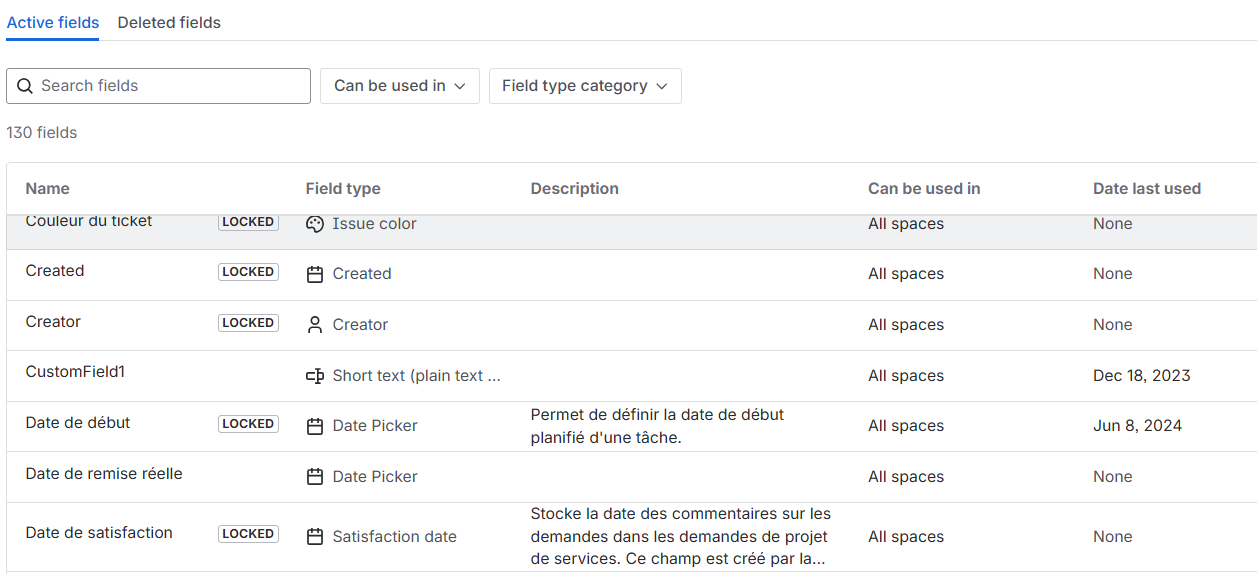
Custom fields are the single biggest contributor to performance degradation and user confusion in Jira Cloud. Every time a custom field is created, it adds weight to the issue view and search index.
The Strategy:
- Identify Duplicates: Look for fields with the same intent (e.g., "Due Date" vs. "Target Date").
- Check "Last Used": Jira Cloud now offers a "Last used" column in the Custom Fields view. If a field hasn't been used in 2 years, it’s a prime candidate for deletion.
- Merge Contexts (Company-Managed): This is a pro tip. Instead of creating "Dev Team" and "Marketing Team" as separate dropdown fields, create one "Team" field and use Custom Field Contexts to show different options based on the project.
2. Contain Team-Managed Project Sprawl
Jira Cloud's "Team-managed" (formerly Next-Gen) projects are great for autonomy, but they are a nightmare for hygiene. Every time a team creates a unique field in a Team-managed project, Jira creates a "ghost" field in the background.
The Audit:
- Check your project list. Do you have 500 projects for 200 users?
- Identify Team-managed projects that have drifted too far from company standards.
- The Fix: If a Team-managed project requires complex workflows or reporting that spans the organization, migrate it to a Company-managed project to share standard schemes and fields.
3. Review and Prune Automation Rules
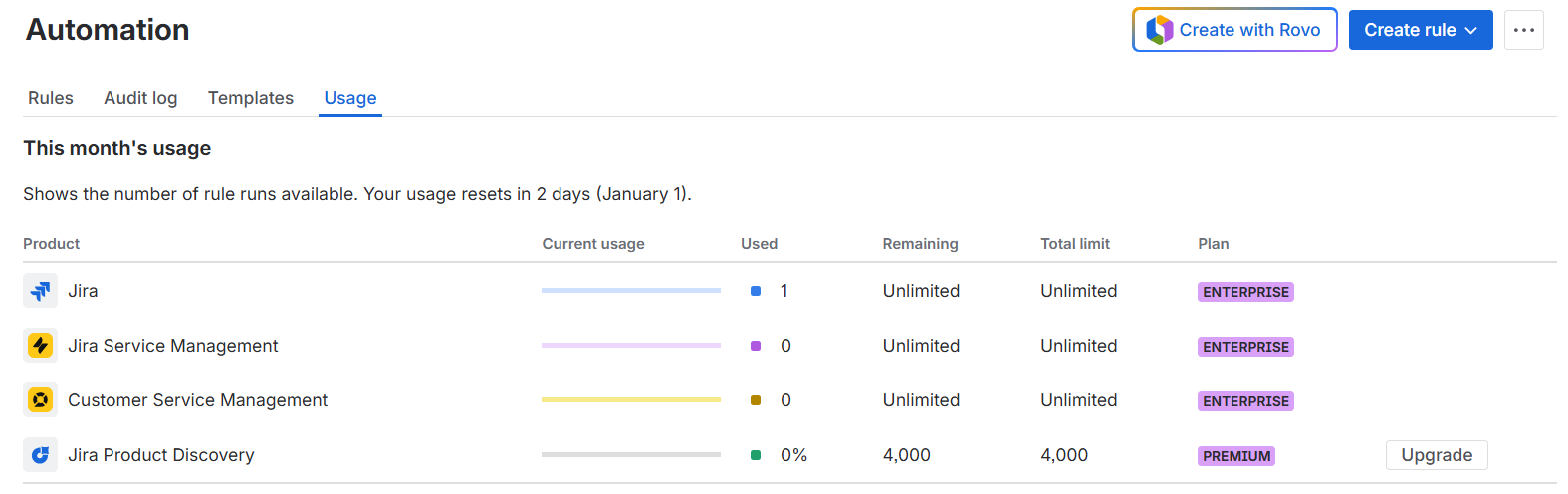
In Jira Cloud, you are bound by monthly execution limits (depending on your Standard, Premium, or Enterprise plan). Inefficient rules don't just slow things down; they can actually stop working if you hit your cap.
Common Offenders:
- Global Scope: Rules set to "All Projects" that check every single issue update.
- Inefficient JQL: Triggers that use broad queries without project restrictions.
- Redundant Rules: Rules doing simple tasks (like setting a default field value) that could be handled by a Workflow Post-function instead (Post-functions do not count toward automation limits).
Go to Global Automation > Usage to identify which rules are eating your allowance.
4. Consolidate Your Workflows
I once worked with a client who had 400 active workflows. The maintenance overhead was astronomical.
The Fix: Move toward Shared Workflow Schemes. Most teams usually need one of three types of flows:
- Simple: To Do -> In Progress -> Done
- Standard: To Do -> In Progress -> In Review -> Done
- Complex (Dev/ITSM): Backlog -> Selected -> In Progress -> Code Review -> QA -> UAT -> Done
Audit your active schemes. If a workflow differs by only one transition name, consolidate it.
5. Permission Scheme Normalization
Are you managing permissions user-by-user? Stop immediately. This makes offboarding a nightmare.
Best Practice: Permissions should always be assigned to Project Roles (e.g., "Developers," "Administrators"), and users/groups should be assigned to those roles.
- Audit: Check for schemes where individual users are hard-coded into permissions like "Browse Projects."
- Action: Replace individuals with Groups (synced from your Identity Provider) or Project Roles. Aim to have fewer than 5 active Permission Schemes for the entire instance.
6. Archive Old Projects
Active projects that haven't been touched in two years clutter the "Create Issue" picker and slow down global JQL searches.
The Strategy:
- Identify: Find projects with no issue updates in 12+ months.
- Archive:
- Premium/Enterprise: Use the native Archive Project feature. This removes the project from the index but keeps the data safe and restores it instantly if needed.
- Standard Plan: You don't have native archiving. Instead, create a Permission Scheme called "Archived" (allow only Admins to browse), apply it to the old projects, and rename them (e.g., "z_Archived_ProjectName") to drop them to the bottom of lists.
7. Clean Up "Unused" Screens and Schemes
A common pitfall is creating a new Screen Scheme for every new project request. Over time, you end up with "Marketing Screen," "Marketing Screen Copy 1," and "Ziad's Test Screen."
The Cleanup:
- Go to Issues > Screens.
- Sort by schemes or workflows to see orphan screens that aren't associated with any active project.
- Delete the orphans. This reduces the load on the admin UI and makes configuration changes less error-prone.
8. User and Group Management (Atlassian Admin)
Ghost users are a security risk and a license cost. In Cloud, you are billed per user.
- Deactivate Inactive Users: Go to admin.atlassian.com. Export the user list and check the "Last active" date. If it’s > 90 days, deactivate them.
- Trusted Users: Audit who has "Trusted User" status. This role allows people to install apps and create projects, which contributes to the mess. Restrict this significantly.
9. App (Plugin) Audit
We all love the Atlassian Marketplace, but unused apps are a security vector and often add iframes that slow down issue loading.
Review Process:
- List all installed apps in Apps > Manage your apps.
- Check if the app is still needed. Did Atlassian recently release a native feature that replaces it? (e.g., native Roadmap vs. roadmapping apps).
- If an app was used for a specific project that is now archived, unsubscribe and uninstall it to save on monthly billing.
10. Review Webhooks and API Tokens
In the Cloud environment, messy integrations are a silent killer.
- Webhooks: Go to System > Webhooks. Look for webhooks pointing to services you no longer use (e.g., an old Slack instance or a decommissioned Jenkins server). Failed webhooks will retry and clutter your logs.
- API Tokens: While you can't easily see all user tokens, you can encourage a policy where service accounts are used for integrations rather than personal user tokens. This ensures that when an employee leaves, your integrations don't break.
Conclusion
Hygiene isn't a one-time event; it's a discipline. I recommend performing a "Lite" version of this audit quarterly and a "Deep" version (like the one above) annually.
A clean Jira Cloud instance leads to snappy page loads, predictable automation usage, and happier teams. If you are staring at 2,000 custom fields and don't know where to start, don't worry—it’s fixable. It just takes a plan.
👉 Contact me for expert Atlassian consulting. Subscribe for more Atlassian automation ideas and real-world tips and strategies.
( Atlassian Consulting )
Need tailored Atlassian guidance?
Get expert assistance with custom configurations, Jira Service Management, Cloud migrations, Assets architecture and more.
Contact me →