Confluence
Confluence Cloud's New Toolbar Features: Pin/Unpin Guide for Better Editing
Discover Confluence Cloud's new pinned and unpinned toolbar options. Learn how these 2025 editor updates improve your content creation workflow and team productivity.
What's New with Confluence's Toolbar
Confluence Cloud rolled out a game-changing toolbar update in 2025 that gives users complete control over their editing experience. You can now choose between keeping your formatting toolbar pinned at the top or letting it appear inline when you select text.
This isn't just a cosmetic change—it's designed to reduce visual clutter and improve focus for different types of users and workflows.[^3]
The Two Toolbar Options Explained
Pinned Toolbar (Traditional View)
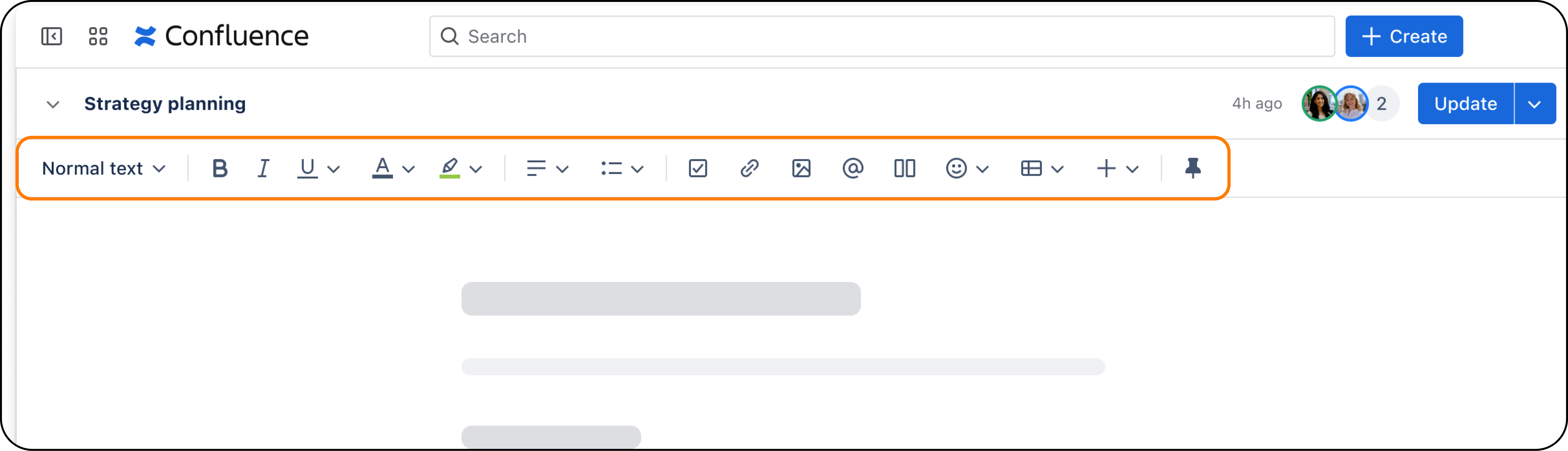
The pinned toolbar keeps all your formatting tools visible at the top of the screen—just like the classic Confluence experience. When pinned, you get immediate access to:
- Text formatting (bold, italic, headings)
- Media insertion tools
- Tables and layouts
- Emojis and special characters
- All macros and elements
Best for: Heavy content creators, teams managing complex documents, or users who prefer having all tools visible.
Unpinned Toolbar (Minimalist View)
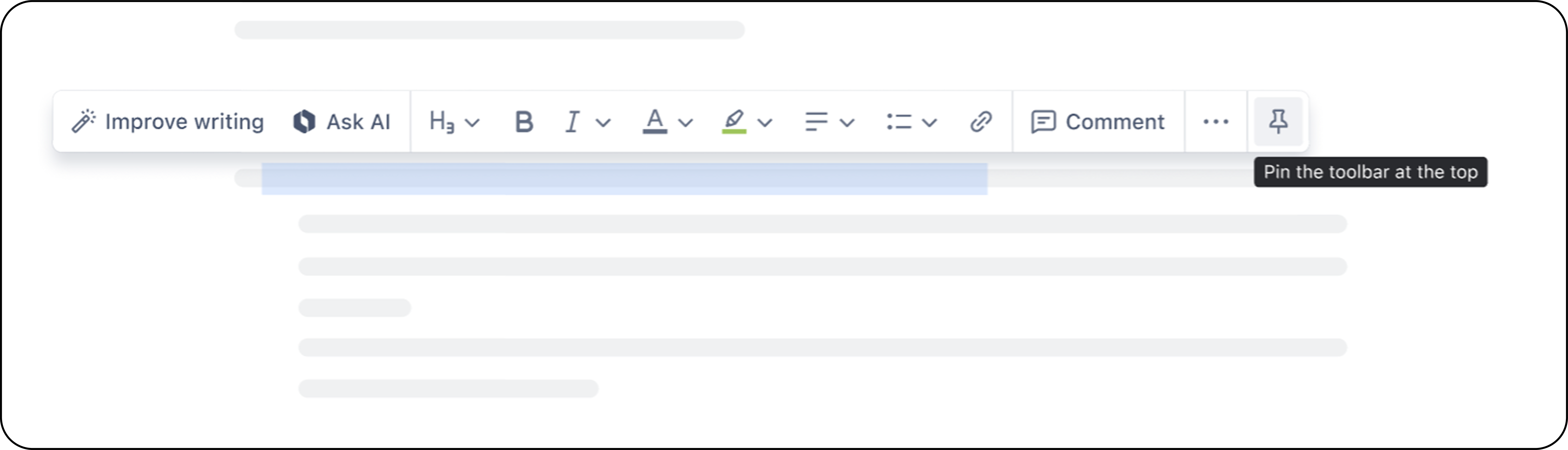
The unpinned toolbar disappears from the top and only appears when you select text. This creates a cleaner, distraction-free editing environment.
To access the toolbar when unpinned:
- Select any text with your mouse
- Use keyboard shortcuts:
Ctrl + Shift + Left/Right arrow(Windows) orCommand + Shift + Left/Right arrow(Mac) - The toolbar appears inline with your selected content
Best for: Users who prefer minimal interfaces, keyboard shortcut enthusiasts, or teams focused primarily on writing content.
How to Switch Between Views
Switching is simple—look for the pin icon at the right end of your toolbar:[^2]
- To unpin: Click the pin icon when your toolbar is currently pinned
- To pin back: Select some text to reveal the inline toolbar, then click the pin icon
 Important: Your preference saves automatically and applies to both Pages and Live Docs. However, if you use multiple Confluence sites, you'll need to set your preference for each one.
Enhanced Element Insertion
Both toolbar modes work with Confluence's improved element insertion system:
The Plus (+) Button
Hover over any content block to see a + button that gives you quick access to:
- Tables and layouts
- Media files
- Date elements
- Macros and widgets
Slash Commands
Type "/" anywhere on the page to open the element browser. This works regardless of your toolbar preference and includes:
/table - Insert tables
/date - Add calendar dates
/panel - Create info boxes
/code - Insert code snippets
/mention - Tag team members
The slash command system has become central to Confluence's productivity approach, making element insertion faster than ever.
Who Should Use Which Option?
Choose Pinned Toolbar If You:
- Create content with lots of formatting variety
- Frequently insert media, tables, and complex layouts
- Manage documentation that requires quick access to multiple tools
- Are migrating from older Confluence versions
- Work on marketing materials or structured reports
Choose Unpinned Toolbar If You:
- Write primarily text-based content
- Prefer minimal, distraction-free interfaces
- Are comfortable with keyboard shortcuts and slash commands
- Create meeting notes, simple documentation, or drafts
- Want maximum screen space for content
Tips for Getting Started
For Teams Switching to Unpinned:
- Practice text selection methods to quickly access the toolbar
- Learn key slash commands to maintain productivity
- Use the + button for quick element insertion while hovering over content
For Pinned Toolbar Users:
- Explore the improved macro experience—many elements now show live previews instead of gray placeholder boxes
- Try the + button even with pinned toolbar for contextual insertions
- Combine toolbar and slash commands for maximum efficiency
Common Gotcha to Avoid:
The biggest frustration users report is accidentally unpinning the toolbar and not knowing how to get it back. Remember: select text first, then look for the pin icon in the inline toolbar.
What This Means for Teams
Flexibility Without Compromise
Each team member can choose their preferred toolbar mode without affecting others. This individual customization means:
- Developers might prefer unpinned for cleaner coding documentation
- Marketing teams might stick with pinned for rich content creation
- Project managers can switch based on the task at hand
Improved Mobile Experience
The unpinned toolbar works particularly well on smaller screens where toolbar space is premium. Teams with mobile-heavy workflows will appreciate the cleaner interface.
Looking Ahead
This toolbar update is part of Confluence's broader 2025 editor modernization. Atlassian continues improving the editing experience with features like:
- AI-powered content suggestions
- Enhanced real-time collaboration
- Improved performance and loading speeds
- Better integration with other Atlassian tools
The toolbar customization represents Atlassian's commitment to user choice and workflow optimization—giving teams the flexibility to work how they work best.
Ready to Try It?
The new toolbar options are rolling out to all Confluence Cloud instances throughout 2025. If you don't see the pin icon yet, it should appear in your instance soon.
Want help optimizing your team's Confluence setup? As an experienced Atlassian consultant, I help organizations implement these new features strategically, with proper training and change management. Contact me for a consultation on maximizing your Confluence investment.
( Atlassian Consulting )
Need tailored Atlassian guidance?
Get expert assistance with custom configurations, Jira Service Management, Cloud migrations, Assets architecture and more.
Contact me →