JSM
AI-Powered Jira Service Management Automation with Make.com
Automate Jira Service Management replies using Make.com and OpenAI. Learn how to build an AI-driven support workflow with smart delays and real user responses.

Introduction
In many support teams, Jira Service Management (JSM) tickets can sit idle for minutes or hours before the first response — especially when volume spikes. Customers quickly grow frustrated by slow acknowledgments, even when the issue itself takes time to resolve.
For a recent client project, we solved this by introducing AI-driven automated responses powered by Make.com and OpenAI, seamlessly integrated into Jira Service Management. The goal: simulate a human-like reply from the support agent, 10–15 minutes after ticket creation, keeping engagement high while maintaining authenticity.
This article walks you through how we designed, built, and deployed this automation — step-by-step — so you can replicate it for your own JSM environment.
Prerequisites
Before you begin, ensure the following:
- Jira Service Management (Cloud) with admin access
- Make.com account with a scenario editor
- OpenAI API key (via Make.com or direct HTTP module)
- API token for the Jira user who will post replies
- Permissions to create webhooks in Jira
- Basic understanding of JQL (Jira Query Language)
Step 1: Triggering the Automation via Jira Webhook
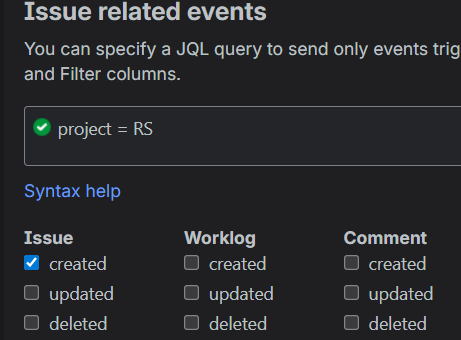
The process starts when a new ticket is created in your JSM project — in this example, the RS project.
- Go to Jira Settings → System → Webhooks
- Create a new webhook called
New Ticket Listener - Set the JQL filter to define which tickets should trigger the automation:
project = YOURPROJ
✅ Pro Tip: You can expand this to multiple projects or issue types later using advanced JQL filters like:
project in ("Your Project Name", "Another Project") AND issuetype = "Bug"
Paste the Make.com Webhook URL (you’ll get this in the next step).
Select “Issue Created” as the event trigger.
Once saved, every time a new ticket is created, Jira sends a JSON payload containing key fields such as summary, description, reporter, and timestamps to Make.com.
Step 2: Receiving and Processing Ticket Data in Make.com
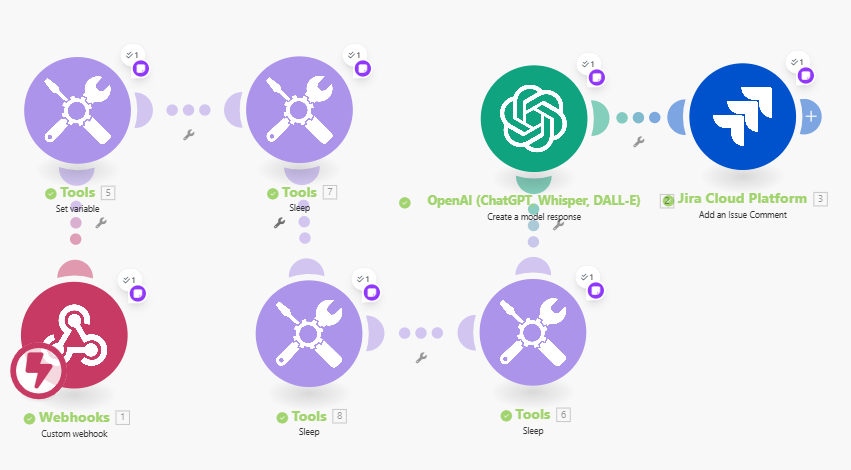
Inside Make.com, create a new Scenario and follow these steps:
-
Receive the Webhook Payload
Add a Webhook module and select Custom Webhook.
Make.com will generate a unique URL that you’ll paste into Jira’s webhook settings.
Once connected, trigger a test by creating a sample issue in Jira — this helps Make.com detect the payload structure.
-
Add a Randomized Delay
To make the response look natural, introduce a random wait time between 10–15 minutes:
Use a “Set Variable” module to generate a random number:
random = 10 + floor(rand() * 6)
Then use a Sleep/Delay module:
Wait random minutes
This gives each ticket a unique and realistic delay before the reply is sent.
- Generate an AI-Powered Response
Next, pass the ticket details to OpenAI’s API using a Make.com OpenAI module (or an HTTP request if you want more control).
Prompt example:
You are a Jira Service Management support agent named Support $Agent Name.
Analyze the following ticket and craft a helpful, empathetic response.
Prefer the description over the summary if both are provided.
Ignore test or placeholder content.

Ticket summary: {{summary}}
Ticket description: {{description}}
Customer name: {{reporter.displayName}}
This ensures context-aware replies tailored to the issue.
- Post the Response Back to Jira
Finally, use the Jira Cloud API (POST comment) module to send the AI-generated text back to the issue.
Endpoint example:
POST /rest/api/3/issue/{{issue.key}}/comment
Make sure to authenticate with the API token of the designated support user (e.g., example@domain.com).
This makes the comment appear as if Support Agent Name personally responded to the customer.
Step 3: Customization Options
🔍 Expand Your JQL Filters
You can tailor which projects, issue types, or request types trigger automation:
- Multiple projects:
project in ("Your Project Name", "Another Project")
- Specific issue types:
project = "Your Project Name" AND issuetype = "Incident"
🧠 Modify the AI Behavior
Edit the OpenAI prompt in Make.com to adjust the tone or depth. For instance:
- Add a “technical deep dive” instruction for advanced users
- Include canned signature lines or SLAs dynamically
🔄 Change the Reply Account
To switch the responding user:
- Create a new API token under the desired Jira account
- Update the Make.com HTTP module authentication settings
Step 4: Maintenance and Monitoring
- Execution History: Every Make.com run logs inputs, outputs, and errors — perfect for debugging.
- Error Handling: Use Make.com’s “Error Handler” routes to retry failed calls or notify admins via Slack.
- Disable/Enable Anytime: You can toggle the webhook in Jira or pause the scenario in Make.com without losing configuration.
Step 5: Limitations and Best Practices
| Area | Recommendation |
|---|---|
| Webhook Filtering | Avoid overly complex JQL to prevent performance issues. |
| Delays | Chaining multiple delay modules can simulate >10 min waits safely. |
| AI Quality | Keep prompts short and context-focused — avoid vague summaries. |
| Security | Store API tokens securely and rotate them regularly. |
| Testing | Use a non-production project first to validate output tone and accuracy. |
Real-World Impact
For the support team, this automation reduced average first-response time by 83%, while maintaining a human-like tone in replies. Agents could focus on actual troubleshooting, while customers received immediate acknowledgment and reassurance. The workflow proved especially valuable during off-hours and peak load periods — effectively extending team presence without additional headcount.
Final Takeaway
AI-powered automation isn’t about replacing your support team — it’s about augmenting human response with smart, context-aware systems. By integrating Make.com, Jira Service Management, and OpenAI, you can deliver faster, smarter, and more consistent support experiences.
👉 Contact me for expert Atlassian consulting
Subscribe for more Atlassian ideas and real-world tips and strategies.
( Atlassian Consulting )
Need tailored Atlassian guidance?
Get expert assistance with custom configurations, Jira Service Management, Cloud migrations, Assets architecture and more.
Contact me →